Switches to whoever is talking
Picks the camera from the mics, adds close-ups when the footage is 4K, and holds wide shots for back-and-forth.
A kit for Claude Code
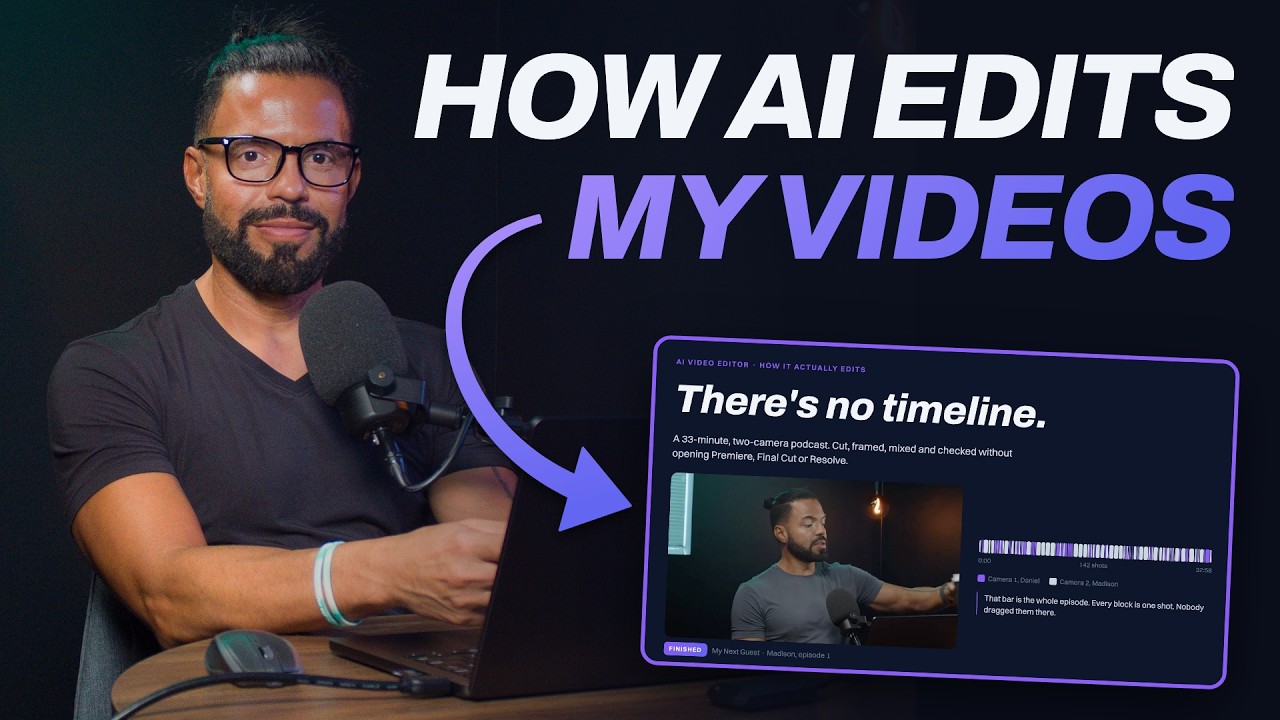
The AI Video Editor turns Claude Code into a video editor. Drop in your camera files and your audio, say "edit the podcast", and it syncs, cuts, frames, captions and renders. Then it cuts the reels.
Updated November 2026 · 33 cards · 4 caption styles
What it does
It's built for the most common job: two or three cameras, a conversation, and short clips cut from it afterwards. Each step is a script Claude runs for you. You never type a command.
Picks the camera from the mics, adds close-ups when the footage is 4K, and holds wide shots for back-and-forth.
Finds the strongest moments and keeps each clip a complete story with a start, a point and an ending.
Uses your font, colour and size. The words come from the saved transcript, so they match what was said.
Follows faces to turn 16:9 into 9:16 or 4:5, leaving room above the head.
Matches cameras to the audio by sound, so you don't need a clap or a slate.
Cuts from the transcript. It leaves a breath after a sentence ends and never cuts in the middle of a word.
Transcribes on your own computer, free, with the speakers named. It's saved, so it never runs twice.
Evens out the voices and sets loudness to a standard target: one for the full episode, another for reels.
Checks for leftover dead air, sound out of sync, blank frames and wrong length. A clean finish is not enough proof on its own.
How it learned
It started on 13 July 2026. Claude edits, I watch and correct, and each correction becomes a rule or an automatic check. Anything I used to catch by eye, like dead air, sync or loudness, is now measured before I see the video.
It saved me over 300 hours in ten weeks. And every note I give it once becomes permanent, so the next edit needs fewer notes.
 Daniel Ro
It read my CapCut projects to learn how I cut, trim and place B-roll.
Measured from the editor's history, 28 Oct 2026. Started 13 July 2026. Hours saved: 31 episodes and 257 reels from 19 Aug to 29 Oct, counted at 4 hours per finished hour and 1 hour per reel by hand, minus the 23.5 hours I spent directing the edits.
How it works
Anthropic's coding assistant. It runs in a terminal or inside VS Code.
Paste the three install commands. Claude Code downloads the kit from GitHub.
The third command runs it. It asks a few questions, installs what's missing and does a test render.
"Edit the podcast in this folder." It shows you the plan before it renders.
Watch it and tell it what to change in plain words. It re-renders only what you named.
Setup asks you
Your answers are saved as one file, shows/your-show.json. Every edit reads from it, so the look stays the same across episodes. For a second show or client, run setup again to get a second file. You never copy the kit.
Cards
Cards are the graphics on the video: a key point, a big number, a list beside the speaker, a map, a chart. They're built with Remotion, which makes video graphics from code, so they stay sharp and every card on the show matches.
Setup puts in your colours and fonts. For each episode, you write the words and Claude places them where they're said. Cards work the same on Mac and Windows.
Full-screen and side-by-side cards for the main points of an episode.

Short animated moments, three to eight seconds, for things you show or name.
Big, high-contrast text for the lines you want to land hard.
Captions
Every reel gets captions burned in. The words come from the saved transcript, so they're right the first time, and the timing follows the voice word by word.
Setup picks your font, colour and size. The word that matters takes your accent colour. There's no box behind the text, only a soft shadow, so it reads on any shot.
All four defaults play the same sentence, so you can compare them. Setup asks which one is your default.
These are the defaults. Your captions can look like anything: your font, colours, size, position, even chat bubbles. Tell Claude what you want and it saves it to your show.
Colour
Tell Claude what you want: lift the shadows, more contrast, add an S-curve, warmer skin. It pulls frames from each part of the video, shows you before and after side by side, and renders the one you pick. White balance, matching two cameras and straightening a tilted shot happen on their own.
Pick a look
For frame-by-frame finishing, DaVinci Resolve is faster than going back and forth. Export the edit and every cut comes with it.

Your editor
The kit makes the rough cut: the cuts, the camera switches, the captions and the cards. Then it exports it as a project, so you can open it in your own editor to fine-tune it and colour grade it there.
Already on the timeline
CapCut. Opens as a CapCut desktop project.
DaVinci Resolve. Opens as a Resolve timeline (FCPXML), tested in Resolve Studio 20.
Premiere Pro. Coming soon: Premiere reads a different file type, not tested yet.
Proof
Same kit, same steps as above. These are the latest ones.



What you need
Setup installs the free parts for you. This is everything that ends up on your computer, and what it costs.
Apple chips
Faster with an NVIDIA card
Optional: ElevenLabs or HeyGen, only for an AI voice or avatar, at their pricing.
What setup installs
Setup installs these first, before it asks you anything. All of them are free.
Mac, if you don't have it
The standard installer for developer tools on a Mac.
Setup uses it to install ffmpeg, Node and Python. It asks for your Mac password, so you install it once yourself, from brew.sh. On Windows, setup uses winget, which comes with Windows.
The video engine inside most editing apps.
It cuts, joins and exports your video, masters the sound, and burns in Clean captions.
The language the editor's scripts are written in.
Face tracking for framing, sound analysis for camera switching, and the code that runs Whisper.
Remotion turns code into video. Node runs it.
It draws the cards and the Pop, Spotlight and Line captions, with its own copy of Chrome to render them.
A free speech-to-text model that runs on your computer.
It writes the transcript with the time of every word. Cuts, reels and captions all come from it, and nothing uploads.
Three small model files.
Finding faces for framing and close-ups, hands for gestures, and cleaning up background noise.
Limits
This is a working framework, not a finished app. Know these before you start.
Everything was built and proven on Apple Silicon Macs. Windows should work, but test it on one episode before relying on it.
On an Apple Silicon Mac, transcribing a 90 minute episode takes about 50 minutes, and it only runs once. Older or slower computers take longer.
The kit has no accounts or keys in it. Each person uses their own and pays for their own use.
The kit makes the files. Posting to YouTube and Instagram is available as an add-on.
Podcasts, interviews and talking-head videos work best. Fast-cut music videos and heavy effects aren't what it's for.
Get the kit
These go into Claude Code in the Terminal (PowerShell on Windows), not into the Claude desktop app and not straight into the Terminal. First install Claude Code, open the Terminal, type claude and press Enter. Then paste these one at a time. The kit installs as a plugin, Claude Code's word for an add-on, so you get updates when new versions come out.
/plugin marketplace add danielro-ai/ai-video-editor-public
/plugin install ai-video-editor@ai-video-editor-public
/ai-video-editor:setup
The repo is private for now. Sign in to GitHub on your computer first, or the first command can't find it.
The repo is invite-only. Ask once and you get the invite on GitHub.
Questions
A repo is the folder of code on GitHub. A skill is a set of instructions that tells Claude how to do one job. A plugin packs the code and the skills together so Claude Code can install them in one step. The kit is all three: a repo, installed as a plugin, full of skills.
No. Your video and audio stay on your computer, and transcription runs locally too. The only things that leave your computer are your chat with Claude and any calls to services you set up yourself, like an AI voice.
Yes. Each one gets its own settings file. Say which show you're editing and it uses that one's look.
Yes. That's what it's for. The code is plain Python and TypeScript, and the rules that make the edits look right are written down in the repo.
In a file named .env on your computer. The kit never commits it, so it never ends up on GitHub.
Privacy and safety
The questions developers ask first, answered from the code.
AI Video Editor · Built by Daniel Ro from a production editor used on real podcasts every week.